How to Fix IPTV Buffering: Home Network Tips for Smooth Streaming
Stop IPTV buffering with practical home network fixes: wired connections, Wi-Fi placement, 5 GHz, the speed you need per stream, router and device care, and player settings.
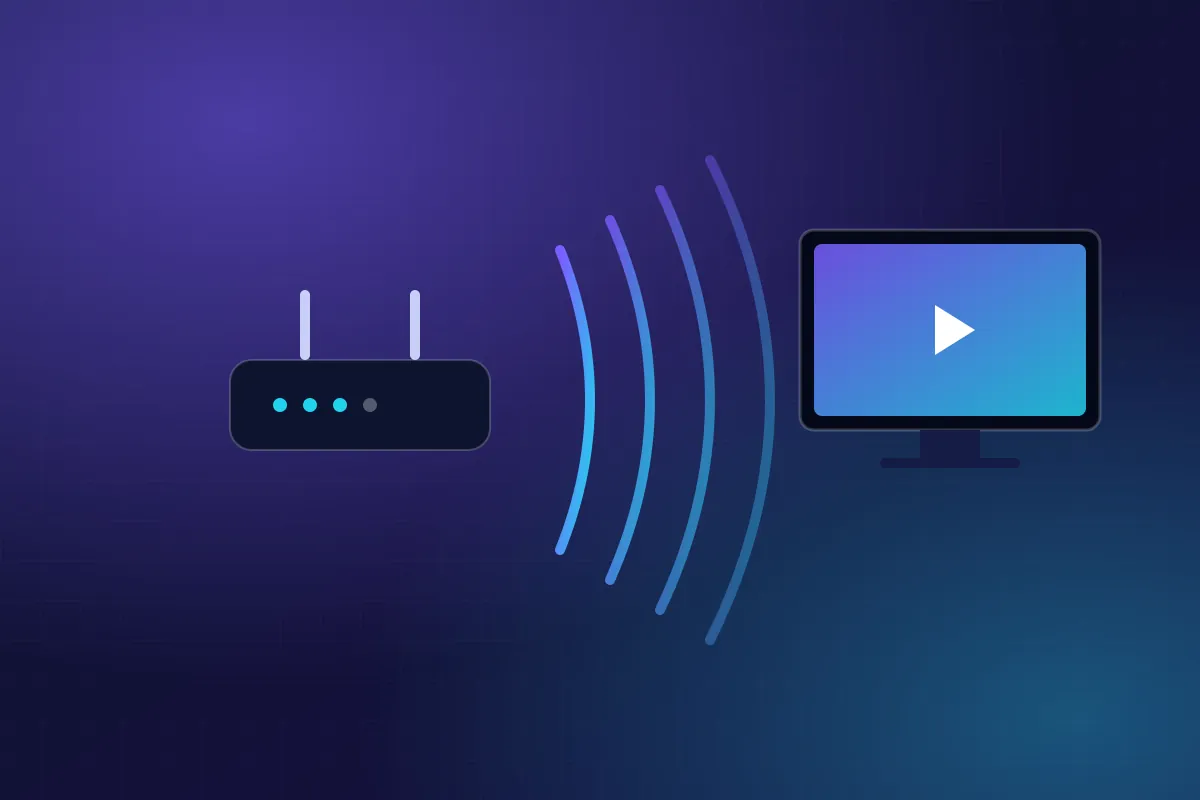
Buffering is the most common complaint about IPTV, and it is also one of the most misunderstood. When a live channel freezes or the loading circle appears, it is natural to blame the provider. In practice, a large share of buffering starts inside the home: a weak Wi-Fi signal, a router doing too many things at once, a streaming stick that has not been restarted in weeks, or a player app with the wrong settings.
The good news is that home network problems are usually the easiest to fix, and most fixes cost little or nothing. This guide explains what buffering actually is, how to work out where the problem comes from, and the practical changes that make IPTV streaming smoother. The advice applies to ProtoIPTV and to any other live streaming service, and it is ordered roughly from the biggest improvements to the finer adjustments.
What buffering actually is
Every streaming player keeps a small reserve of video, called a buffer, downloaded slightly ahead of what you are watching. As long as new video arrives faster than the player uses it, playback is smooth. When the connection cannot keep up, the buffer empties, playback pauses, and the player waits until it has enough data to continue. That pause is buffering.
Why live TV buffers more than on-demand video
On-demand services can download minutes of video in advance, so a brief slowdown goes unnoticed. Live TV cannot work that way, because the video does not exist yet. A live stream keeps only a few seconds in reserve, which means even short drops in speed or brief Wi-Fi interference can show up on screen. This is why a connection that handles films perfectly can still struggle with live sport.
Speed, stability and consistency
Buffering is rarely about raw speed alone. Three properties matter:
- Bandwidth: how much data your connection can carry per second.
- Stability: whether that bandwidth stays steady or rises and falls from moment to moment.
- Packet loss: whether pieces of data go missing on the way and need to be sent again.
A connection with plenty of bandwidth but frequent drops, usually caused by Wi-Fi interference, often buffers more than a slower connection that is perfectly steady. That is why so many of the fixes below focus on stability rather than speed.
Diagnose before you fix
A few minutes of observation saves hours of guesswork. Before changing anything, work out where the problem lives by asking four questions.
Is it one channel or every channel?
If only one channel buffers while others play smoothly, the problem is probably with that particular stream rather than your network. Note the channel name and the time, and report it to support. If every channel buffers, the cause is more likely on your side: the network, the device or the player.
Is it one device or every device?
Try the same channel on a second device, ideally one connected differently, such as a phone on Wi-Fi next to the router. If the second device plays smoothly, the problem is with the first device or its connection. If both struggle, look at the router or your internet line.
Is it at certain times of day?
Buffering that only happens in the evening points to congestion, either on your home network when everyone is online or on your internet provider’s network at peak times. Buffering at all hours points more towards Wi-Fi or device problems.
Does a restart fix it temporarily?
If restarting the device or router clears the problem for a few hours before it returns, the cause is often memory, cache or overheating on the device, or a router that needs a firmware update.
Keep a short note of what you find: which channels, which devices, what time and how you are connected. If you need to contact ProtoIPTV support, this information makes the problem much faster to solve.
Use a wired connection for your main TV
If you make only one change, make this one. An Ethernet cable between your router and your TV or streaming device removes Wi-Fi interference completely. The connection becomes steady, latency drops, and packet loss from wireless interference disappears. For live TV, that stability is worth more than any setting in the player.
Running an Ethernet cable
Most Smart TVs, Android TV boxes, Apple TV models and MAG boxes have an Ethernet port. A flat Ethernet cable can run along skirting boards or under carpets with little disruption. Once it is connected, check the device’s network settings to confirm it is using the wired connection rather than Wi-Fi.
Streaming sticks without an Ethernet port
Fire TV Sticks and similar small devices do not have a built-in Ethernet port. Compatible Ethernet adapters are available for many of them, connecting through the power or USB port. It is a small purchase that can transform the reliability of a stick placed behind a TV far from the router.
Powerline adapters
When running a cable through the house is impractical, powerline adapters carry the network signal through your home’s electrical wiring. You plug one adapter in near the router, connect it with a short cable, and plug a second adapter in near the TV. Results depend on the wiring in your home, but they are often steadier than Wi-Fi through several walls. Plug adapters directly into wall sockets rather than extension leads for the best performance.
Mesh Wi-Fi with a wired backhaul
A mesh Wi-Fi system uses several units around the home. If the units can be linked to each other with Ethernet, called a wired backhaul, the unit near the TV gets a strong, stable connection, and you can often plug the TV or streaming device directly into that unit.
Understand how much speed you need
Once the connection is stable, check that it has enough capacity for the way your household watches.
ProtoIPTV recommends at least 15 Mbps for Full HD and 30 Mbps or more for 4K, per stream. Those figures leave some headroom above the bare minimum, which matters for live TV.
Multiply by the number of streams
If two people watch different channels at the same time — see how to choose your connection count — you need enough capacity for both streams, plus everything else in the home that is using the internet. Here is a rough way to plan:
| Household situation | Streams at once | Suggested minimum |
|---|---|---|
| One viewer, Full HD | 1 | 15 Mbps plus other usage |
| One viewer, 4K | 1 | 30 Mbps plus other usage |
| Two viewers, Full HD | 2 | 30 Mbps plus other usage |
| Two viewers, one in 4K | 2 | 45 Mbps plus other usage |
| Three viewers, Full HD | 3 | 45 Mbps plus other usage |
“Other usage” includes video calls, online gaming, downloads, cloud backups and phones updating apps in the background. It can be significant, especially in the evening.
How to run a useful speed test
A speed test is only meaningful if it reflects how you actually watch.
- Run the test on the streaming device itself where possible. Many Smart TVs and Android TV devices have a browser or speed test app; Fire TV devices also show network status in their settings.
- Test at the time you usually watch, not in the middle of the afternoon.
- Run the test two or three times a few minutes apart. Large differences between results suggest an unstable connection.
- Compare a test over Wi-Fi with one over a wired connection if you can. A big gap tells you Wi-Fi is the weak point.
What the numbers do not show
A speed test measures a short burst of data. It does not always reveal brief drops that last a second or two, which are exactly what interrupts live TV. If a speed test looks fine but buffering continues, focus on stability: wired connections, Wi-Fi placement and reducing interference.
Improve your Wi-Fi
If a wired connection is not possible, a few changes to your Wi-Fi setup can make a large difference.
Router placement
Wi-Fi signals weaken as they pass through walls, floors and objects. Place the router:
- As centrally in the home as possible, rather than in a corner or at one end of the house.
- High up, such as on a shelf, rather than on the floor.
- In the open, not inside a cabinet or behind the TV.
- Away from large metal objects, mirrors, fish tanks and appliances such as microwaves.
Moving a router a couple of metres can sometimes improve the signal at the TV noticeably.
2.4 GHz and 5 GHz
Most modern routers broadcast on two bands:
- 2.4 GHz reaches further and passes through walls better, but it is slower and shared with many other devices, including neighbours’ networks, Bluetooth and some household appliances.
- 5 GHz is faster and much less crowded, but its range is shorter.
If your TV or streaming device is in the same room as the router, or one wall away, connect it to the 5 GHz band. Some routers combine both bands under one network name; if yours does and the device keeps choosing 2.4 GHz, check whether the router lets you give the 5 GHz band its own name so you can select it directly.
Wi-Fi channel congestion
In flats and busy neighbourhoods, many routers compete for the same Wi-Fi channels. Most routers choose a channel automatically, but if buffering is worse in the evening when neighbours are online, a router restart can prompt it to pick a less crowded channel. Some routers let you choose the channel manually in their settings.
Interference from household devices
The 2.4 GHz band is shared with more than just other routers. Microwave ovens, older cordless phones, some baby monitors and Bluetooth devices can all interfere with it. If buffering coincides with the microwave running or a particular device being switched on, that is a strong sign of interference, and moving the streaming device to the 5 GHz band or a wired connection is the fix.
Mesh systems and range extenders
If the TV is far from the router, a mesh Wi-Fi system usually performs better than a simple range extender. Basic extenders often halve the available speed because they receive and resend data on the same radio. Mesh systems are designed to manage this more efficiently, especially with a wired backhaul.
Reduce competing traffic
Your internet connection is shared by everything in the home. Even a fast connection can struggle when several heavy tasks happen at once.
Common bandwidth users
- Large downloads, such as game updates and operating system updates.
- Cloud photo and file backups, which often run in the background.
- Video calls and online gaming.
- Other streaming services running on other screens.
- Phones and tablets updating apps automatically.
Schedule big downloads and updates overnight where possible, and pause backups during live events you do not want to miss.
Quality of service settings
Many routers include quality of service (QoS) settings that let you prioritise certain devices. Giving your main TV or streaming device priority means it keeps a steady share of the connection even when others are busy. The exact options vary by router, so check its manual or settings page.
Keep your router healthy
Routers are small computers, and like any computer they benefit from maintenance.
- Restart it occasionally. A restart clears memory and can resolve slowdowns that build up over weeks.
- Update the firmware. Router updates often fix bugs and improve performance. Many update automatically; others need you to check in their settings.
- Consider its age. An old router supplied by your internet provider may not handle many devices and high-quality streams well. Your provider may offer a newer model.
- Check the cables. A loose or damaged cable between the router and the wall socket can cause intermittent drops.
Keep your streaming device healthy
The device doing the streaming needs enough memory, storage and processing power to decode video smoothly.
Restart it regularly
Many streaming devices go into standby rather than turning off, so they can run for weeks without a real restart. A full restart clears memory and stops background processes. On Fire TV, use Settings → My Fire TV → Restart. On Android TV, use the restart option in the system settings. Unplugging the device for ten seconds works on almost anything.
Clear the player app’s cache
Player apps store temporary data that can grow over time. Clearing the cache often fixes slowness without affecting your login. On Fire TV, open Settings → Applications → Manage Installed Applications, choose the player and select Clear cache. On Android TV, open Settings → Apps, choose the player and clear its cache. Our installation guides include device-specific steps.
Free up storage
Devices with very little free storage can slow down. Uninstall apps you no longer use, especially on streaming sticks with limited space.
Keep software up to date
Update both the device’s system software and the player app. Updates often improve video decoding and fix playback bugs.
Watch for overheating
Small streaming sticks tucked tightly behind a TV can get hot, and some slow down to protect themselves. If a stick feels very warm, use an HDMI extension cable to move it away from the back of the TV, where there is more airflow.
Check the player app settings
Some player apps include settings that affect playback. The names vary, but these are common:
- Decoder: hardware or software. Hardware decoding uses the device’s video chip and is usually smoother. If a channel stutters, shows a black screen or plays audio without video, try switching between hardware (HW) and software (SW) decoding.
- Buffer size. Some players let you increase the buffer. A larger buffer can smooth out brief drops, at the cost of a slightly longer delay when changing channels.
- Stream format. Some players offer different stream formats. If one format buffers on your device, support can advise whether another is better.
- Video quality. If your connection struggles with the highest-quality version of a channel, a lower-quality version, where offered, will play more smoothly.
Change one setting at a time and test for a while before changing another, so you know which adjustment helped.
Buffering, freezing or something else?
Not every playback problem is buffering, and the fix depends on what you actually see. Identifying the symptom correctly saves time.
The loading circle appears and playback pauses
This is true buffering: the player has run out of video and is waiting for more. Focus on connection stability and capacity, using the steps above.
The picture stutters but never stops
If the image looks jerky, especially during fast camera movement, without a loading indicator, the cause is often the TV or device rather than the network. Motion smoothing settings on some TVs, a mismatch between the stream’s frame rate and the TV’s display settings, or software decoding on a weaker device can all cause stutter. Try turning off motion smoothing in the TV’s picture settings and switching the player’s decoder mode.
The picture becomes blocky or blurry
Pixelation that comes and goes usually means the stream is briefly receiving less data than it needs. It is closely related to buffering and responds to the same fixes, particularly better Wi-Fi or a wired connection.
Sound plays but the picture is black
This is almost always a decoding problem on the device rather than a network issue. Switch between hardware and software decoding in the player, update the app, or restart the device. The support center lists more quick fixes.
Audio and video drift out of sync
A gradual drift between sound and picture is usually a player or device issue. Changing channel and back, restarting the player or switching decoder mode normally resets it. If you use a soundbar or AV receiver, check its audio delay settings too.
Device-specific tips
Each type of device has its own quirks. These tips complement the steps above.
Amazon Fire TV and Fire TV Stick
- Restart from Settings → My Fire TV → Restart, rather than just pressing the power button on the remote.
- Clear the player’s cache from Settings → Applications → Manage Installed Applications.
- Fire TV devices include a data monitoring option in their preferences that can limit video quality to save data. If it is switched on and you do not need it, turning it off lets streams use their full quality.
- An Ethernet adapter is the single best upgrade for a stick hidden behind a TV.
The Fire TV Stick setup guide covers installation and more troubleshooting.
Android TV and Google TV
- Close apps running in the background, or restart the device, if it has been on for a long time.
- Clear the player’s cache from Settings → Apps.
- Check for both system updates and player updates in Google Play.
See the Android TV guide for full setup steps.
Samsung and LG Smart TVs
- The built-in Wi-Fi in some TVs is weaker than in a dedicated streaming device, so a wired connection often helps more on a TV than anywhere else.
- Turn off motion smoothing if the picture stutters rather than pauses.
- Check that the TV’s software is up to date, as updates can improve app performance.
- On older models, a streaming stick can outperform the TV’s own apps.
Our Samsung and LG guides cover player installation on each.
Apple TV
- Some Apple TV models include an Ethernet port; if yours does, use it for the main TV.
- Restart from Settings → System → Restart if the player becomes slow.
- Keep tvOS and the player app updated.
MAG set-top boxes
- MAG boxes are designed to be connected by Ethernet, so use a cable wherever possible.
- If channels stop loading, restarting the portal or unplugging the box for ten seconds often resolves it.
Phones and tablets
- Battery-saving modes can restrict background activity and network use; allow the player unrestricted use if playback stops when the screen dims.
- On mobile data, check that the player is allowed to use mobile data and remember that live TV uses a lot of it.
- Moving closer to the router, or switching to the 5 GHz band, often fixes buffering on tablets used around the home.
Working with your internet provider
If your home network is in good shape and buffering continues across all devices, your internet line itself may be the bottleneck. Your internet provider can help in ways no one else can.
What to check first
- Your plan’s speed. Compare the speed you pay for with the speed you actually get in a wired speed test. A large, consistent gap is worth raising.
- Peak-time performance. If speeds drop sharply every evening, mention the times and the results.
- Outages and maintenance. Many providers publish service status pages that show local problems.
What to ask your provider
- Can they run a line test to check for faults or interference?
- Is the router they supplied suitable for several devices and high-quality streaming, or is a newer model available?
- Is a faster plan available at your address if your household now streams on several screens at once?
When upgrading your internet plan makes sense
If your household regularly runs several streams at once, alongside video calls and gaming, the plan you chose years ago may simply be too small. Upgrading your internet connection is often the final step after everything else in this guide is already in place.
When the problem is not your network
Sometimes the cause really is outside your home. Signs include:
- A single channel buffers while all others play smoothly.
- The problem affects every device, including one wired directly to the router, at all times of day.
- Other streaming services work perfectly while one service struggles.
In those cases, contact the provider. Give them the details you gathered while diagnosing: which channels, which devices, how they are connected, the time it happened and a speed test result taken on the device. ProtoIPTV support is available 24/7 on WhatsApp, and specific details make it far quicker to find and fix the issue. The support page lists quick fixes to try first.
It is also worth checking whether your own internet provider is having problems in your area, as outages and slowdowns are often reported on their status pages.
Preparing for a big live event
Buffering is most frustrating during the moments you care about most: a cup final, a title fight or the last laps of a race. These events are also when networks are busiest, because many people are watching at the same time. A little preparation on the day makes a real difference.
On the morning of the event
- Restart the streaming device and the router so both start the evening with clear memory.
- Check for and install any pending updates to the device and the player app, so they do not download in the middle of the event.
- Make sure the device is on its wired connection, or on the 5 GHz band if it uses Wi-Fi.
An hour before
- Open the channel you plan to watch and leave it playing for a few minutes to confirm it is stable.
- Ask others in the home to hold off on large downloads, game updates and cloud backups until the event is over.
- If your router supports quality of service settings, give the main TV priority.
Have a fallback ready
- Install the player on a second device, such as a phone or tablet, and sign in beforehand, so you can switch quickly if the main device has a problem.
- Keep the support contact handy. ProtoIPTV support is available 24/7 on WhatsApp if something goes wrong at the worst possible moment.
During the event
- Avoid changing channels repeatedly, which forces the player to rebuild its buffer each time.
- If the stream stops, try reopening the channel before restarting the whole device, as it is quicker and often enough.
A step-by-step buffering checklist
Work through this list in order. Many people find the problem within the first few steps.
- Restart the streaming device and the router.
- Check whether one channel or all channels buffer.
- Try the same channel on a second device.
- Connect the main TV or streaming device with an Ethernet cable, or test a powerline adapter.
- If you must use Wi-Fi, connect to the 5 GHz band and improve the router’s position.
- Run a speed test on the device at your usual viewing time.
- Pause large downloads, backups and updates while watching.
- Clear the player app’s cache and free up storage on the device.
- Update the device software and the player app.
- Try switching the decoder between hardware and software in the player.
- Make sure you are not using more connections than your plan allows.
- Contact support with your notes if the problem continues.
Frequently asked questions
Why does IPTV buffer when other streaming apps work fine?
On-demand apps download a large reserve of video in advance, so they hide short drops in speed. Live TV keeps a much smaller reserve, so the same drops become visible. Improving stability, especially with a wired connection, usually solves this.
What internet speed do I need for smooth IPTV?
ProtoIPTV recommends at least 15 Mbps for Full HD and 30 Mbps or more for 4K, per stream. If several people watch at once, add the requirements together and leave room for other internet use.
Is Wi-Fi good enough for IPTV?
It can be, especially on the 5 GHz band with the device close to the router. For the main TV, though, a wired connection is more reliable because it removes wireless interference.
Does a VPN help with buffering?
A VPN adds an extra step between your device and the service, which can reduce speed. It is not a general fix for buffering. If you use one for other reasons and notice buffering, test without it to see whether it makes a difference.
Why does buffering get worse in the evening?
Evenings are when most people in your home and your neighbourhood are online, so both your home network and your internet provider’s network are busiest. Wired connections, QoS settings and scheduling downloads overnight all help.
Can too many devices cause buffering?
Yes, in two ways. Many devices using the internet at once reduce the bandwidth available for streaming, and using more simultaneous streams than your plan allows can cause streams to stop. Check both your home usage and your plan’s connection count; our guide to choosing an IPTV subscription plan explains how to pick the right number of connections.
Smoother streaming starts at home
Most IPTV buffering can be fixed without changing provider. Start by diagnosing where the problem lives, then work through the biggest improvements first: a wired connection, better Wi-Fi, enough capacity for the number of streams you run, and a well-maintained router and device. Adjust player settings last, one at a time.
If you have tried everything here and the problem continues, gather your notes and contact support. A clear description of what happens and when is the fastest route to a fix.
Still buffering after these steps? Send ProtoIPTV support your device model, connection type and a speed test result.
Get IPTV supportWritten by the ProtoIPTV team. Questions about this article? Contact us.